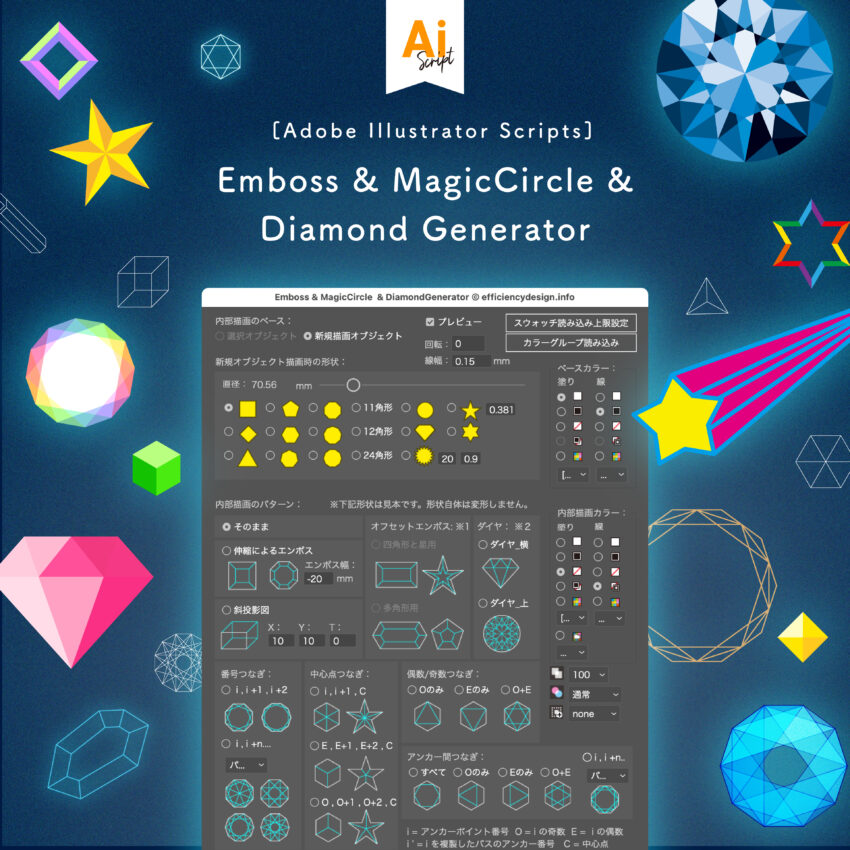
Design rarely goes exactly as planned on the first try. It’s a process of constant trial and error. “What if I add a frame here?” “Maybe a 3D block would look better?” However, this trial and error takes time. Whether you are manually calculating angles to draw an effect or searching for stock assets, it often takes too long to reach that ideal shape.
We all have deadlines. To increase productivity, we need to minimize the time spent on “construction” so we can focus on “design.”
Today, I’m introducing a script that solves this exact problem. It instantly generates complex geometries that are tedious to draw by hand: “Emboss & Magic Circle & Diamond Generator.”
What can this script do?
This script draws vector paths connecting anchor points based on mathematical rules. It can work on an object you have selected, or it can generate a brand new base shape from scratch.
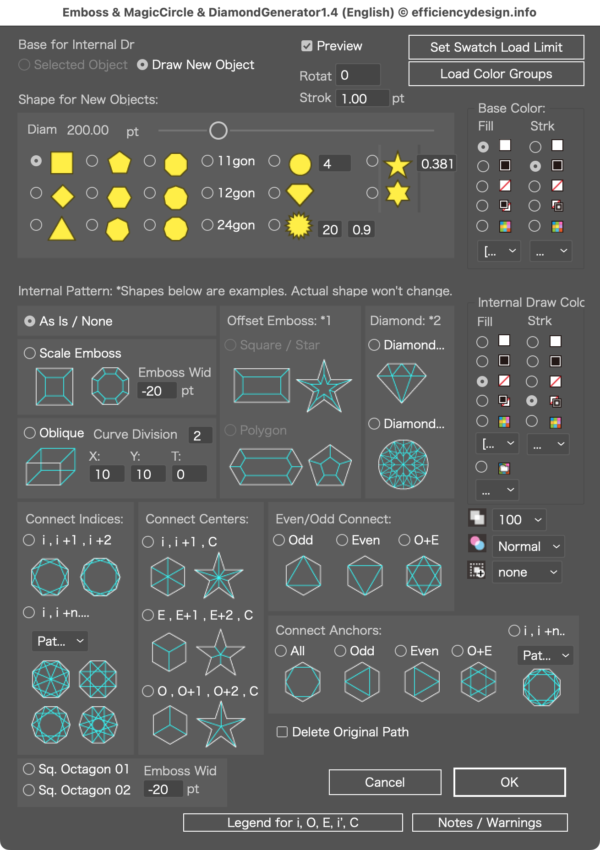
Even with nothing selected, you can instantly draw:
- Perfect Circles (with specified anchor points)
- Regular Polygons (from triangles to 24-sided polygons)
- Stars, Rhombuses, and more.
You don’t need to switch tools or drag your mouse. Just select the settings and click. But the real magic happens with the effects it generates.
1. Instant “Pseudo-Emboss” Effects
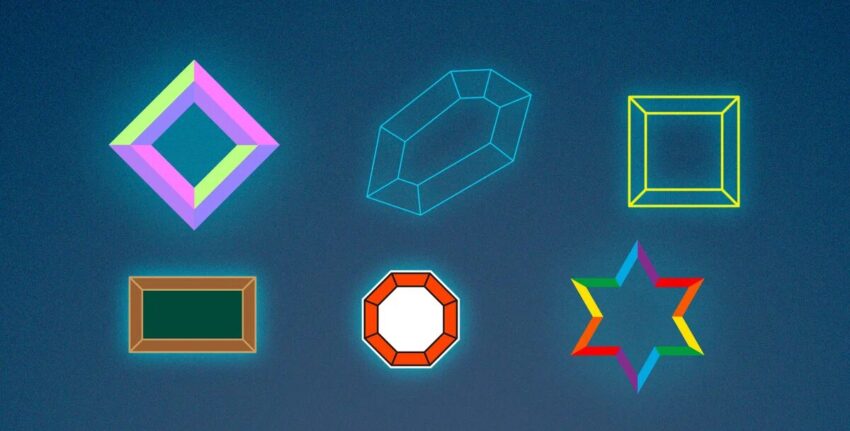
Adding depth to flat design usually requires multiple steps or complex Appearance panel settings. With this script, you can apply a “Scale Emboss” effect instantly. It creates a frame-like or inset look by generating offset paths and connecting the corners. Unlike raster effects, these are pure vector paths, making them easy to color and resize.
2. Faux-3D and Cubes (Oblique Projection)

Creating cubes or 3D-style blocks often leads designers to the heavy “3D & Materials” panel in Illustrator. However, for simple icons or infographics, the native 3D tool can be overkill and hard to color. This script uses “Oblique Projection” to extrude your 2D shapes into 3D blocks instantly. It’s perfect for creating isometric-style graphics or bar charts for infographics.
3. Diamonds and Gemstones in One Click
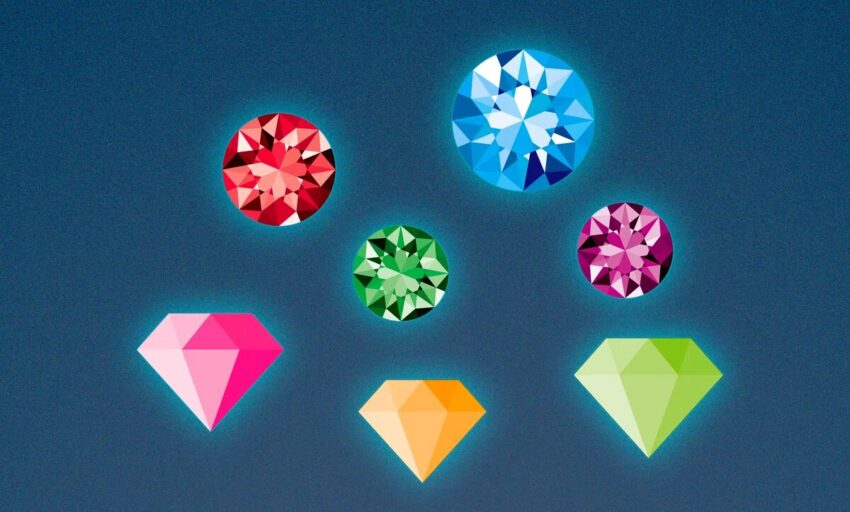
Drawing a mathematically accurate “Brilliant Cut” diamond manually is a nightmare of angles and lines. This feature is a lifesaver for jewelry design or adding a “luxury” feel to your graphics. The script generates the complex facet lines of a diamond (top view or side view) instantly. Combined with the coloring feature (see below), you can create sparkling gems in seconds.
4. Magic Circles & Geometric Patterns
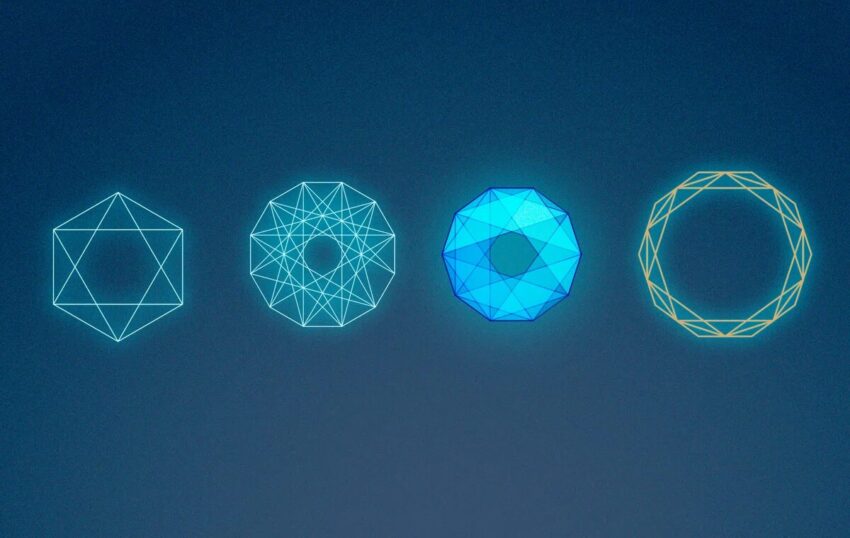
Perfect for fantasy designs, arcane symbols, or sci-fi HUD rings. By automatically connecting anchor points based on specific rules (connecting every other point, odd points only, etc.), the script generates intricate geometric webs. Note: While these look like complex religious symbols or tech diagrams, they are generated purely through geometry.
The “Color Group” Feature: A Time Saver
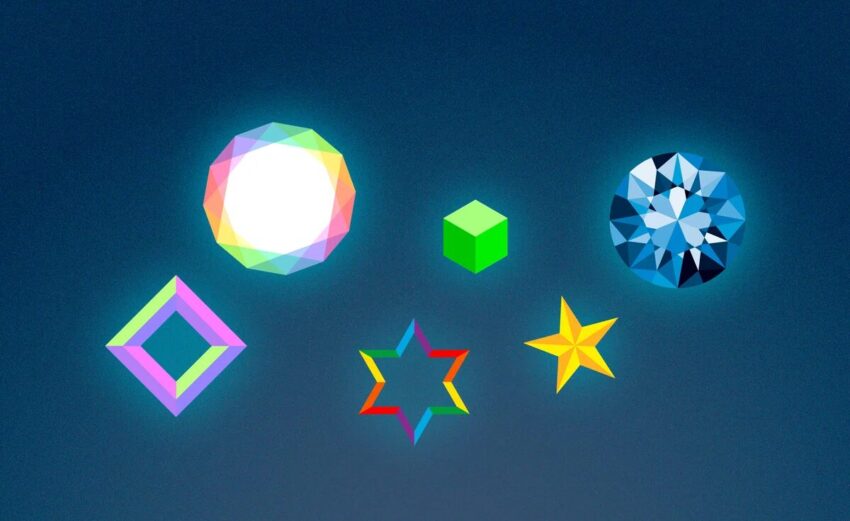
Generating lines is great, but coloring them is where this script truly shines. You can automatically apply colors from your Swatch Panel or Color Groups to the generated facets.
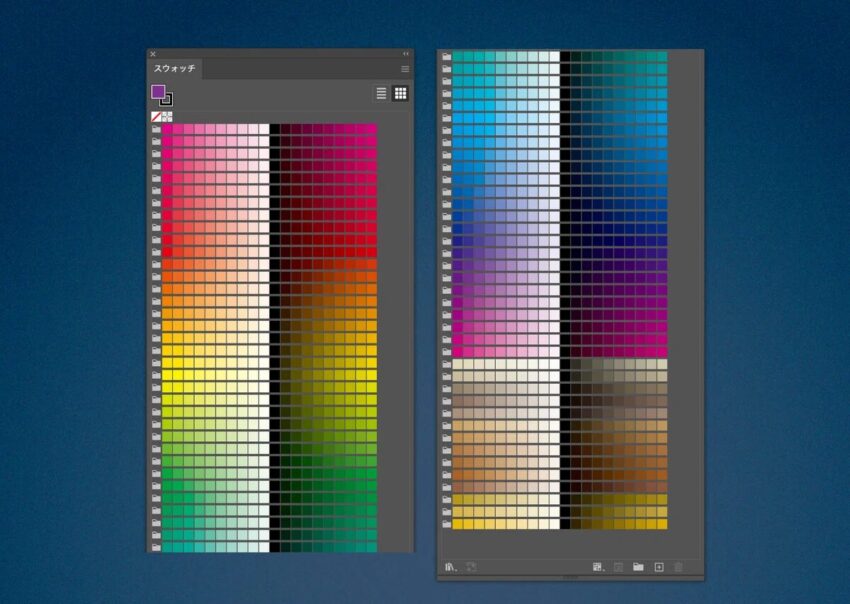
- Massive Library: The script can load 74 color groups (1,480 swatches) with a single button press.
- Instant Application: Apply a gold palette to a diamond or a sci-fi blue to a magic circle instantly.
Practical Use Cases
- Logo Design: Create unique geometric logos by combining basic shapes with the auto-connect feature.
- Luxury Frames: Use the diamond or gemstone settings to create high-end borders for feminine or luxury design projects.
- Background Patterns: Generate complex geometric tessellations for textile design or wallpapers.
- Infographics: Use the faux-3D block generation for stylized graphs and charts.
Summary
This script is designed to be a “time machine” for designers and illustrators. It handles the math and construction, so you can spend your time on creativity.
Get the Script Here:
0 Comments